Pages

Showing posts with label project configuration. Show all posts

Wednesday, October 23, 2013

Using #include in a project

Why

The most common need to use an include directive is to include/reuse a common piece of component of the site, such as header, footer and advertisement.

Common Pitfalls

When using a media or image element in place of actual file name, the generated path contains ., which is invalid pathing by default unless enabled in IIS. The other issue with leading . in pathing is one cannot use that in #include virtual.

' Code in CMS template
<!--#include virtual="<%med_transformer_asp%>"-->

' Generated code in SmartEdit or Page Preview.  Invalid code
<!--#include virtual="../ImageCache/521E5D7461214F71889B2A99C6CAD3F4/514EAAB6BEBB4F86B85AF45DB2A09374/TR/transformer.asp"-->
' Code in CMS template
<!--#include virtual="<%anc_transformer_asp%>"-->

' Generated code in SmartEdit or Page Preview.  Invalid code
<!--#include virtual="./PreviewHandler.ashx?Action=Preview&Mode=0&blahblahblahblah"-->

When using #include file directive, the pathing uses \, CMS publish pathing as /. Though this is a minor issue since both syntax are acceptable.

' desired syntax
<!-- #include file="common\header.htm" -->

' generated syntax
<!-- #include file="common/header.htm" -->

The biggest issue with #include file in CMS is that the path returned is incorrect

' Code in CMS template
<!--#include file="<%med_transformer_asp%>"-->

' Generated code in SmartEdit or Page Preview.
<!--#include file="../ImageCache/521E5D7461214F71889B2A99C6CAD3F4/514EAAB6BEBB4F86B85AF45DB2A09374/TR/transformer.asp"-->
' This maps to
' ASP\ReddotTemp\ImageCache\521E5D7461214F71889B2A99C6CAD3F4\514EAAB6BEBB4F86B85AF45DB2A09374\TR\transformer.asp 
' Instead of
' ASP\ImageCache\521E5D7461214F71889B2A99C6CAD3F4\514EAAB6BEBB4F86B85AF45DB2A09374\TR\transformer.asp 
' Code in CMS template
<!--#include file="<%anc_transformer_asp%>"-->

' Generated code in SmartEdit or Page Preview.
<!--#include file="./PreviewHandler.ashx?Action=Preview&Mode=0&blahblahblahblah"-->
' This maps to
' ASP\ReddotTemp\BC498EE1113D41F7AC877F3D5BD0738E\PreviewHandler.ashx?Action=Preview&Mode=0&blahblahblahblah
' The path is correct, but the file gets deleted as soon as it is generated and displayed.

One can work around the pathing issue with manual path correction

<!IoRangePreExecute>
' Code in CMS template
<!--#include file="../<%med_transformer_asp%>"-->
<!/IoRangePreExecute>

' Generated code during publication mode, invalid code, the file is published
' to the asp folder on the web server.  The asp folder is not on the CMS
' server, so preexecution is trying to use a file that doesn't exist
<!--#include file="../asp/transformer.asp"-->


Solution

If you simply want to use include to include a static file, like header. In publishing mode, use #include, which uses a anchor placeholder to reference the header page. When not publishing, use the header container placeholder, which references the header page.

<reddot:cms>
<if>
    <query valuea="Context:CurrentRenderMode" operator="==" valueb="Int:2">
        <htmltext>
   <!--#include file="<%anc_header%>"-->
        </htmltext>
    </query>
    <query type="else">
        <htmltext>
            <%con_header%>
        </htmltext>
    </query>
</if>
</reddot:cms>

If you want to include an asp library and use the library during SmartEdit, Page Preview, and Publishing, reference the absolute path via #include virtual directive

<!IoRangePreExecute>
' Code in CMS template
<!--#include virtual="/cms/plugins/asplib/transform.asp"-->
<!/IoRangePreExecute>

Monday, February 11, 2013

HTML5 in Management Server 9, 10, and 11

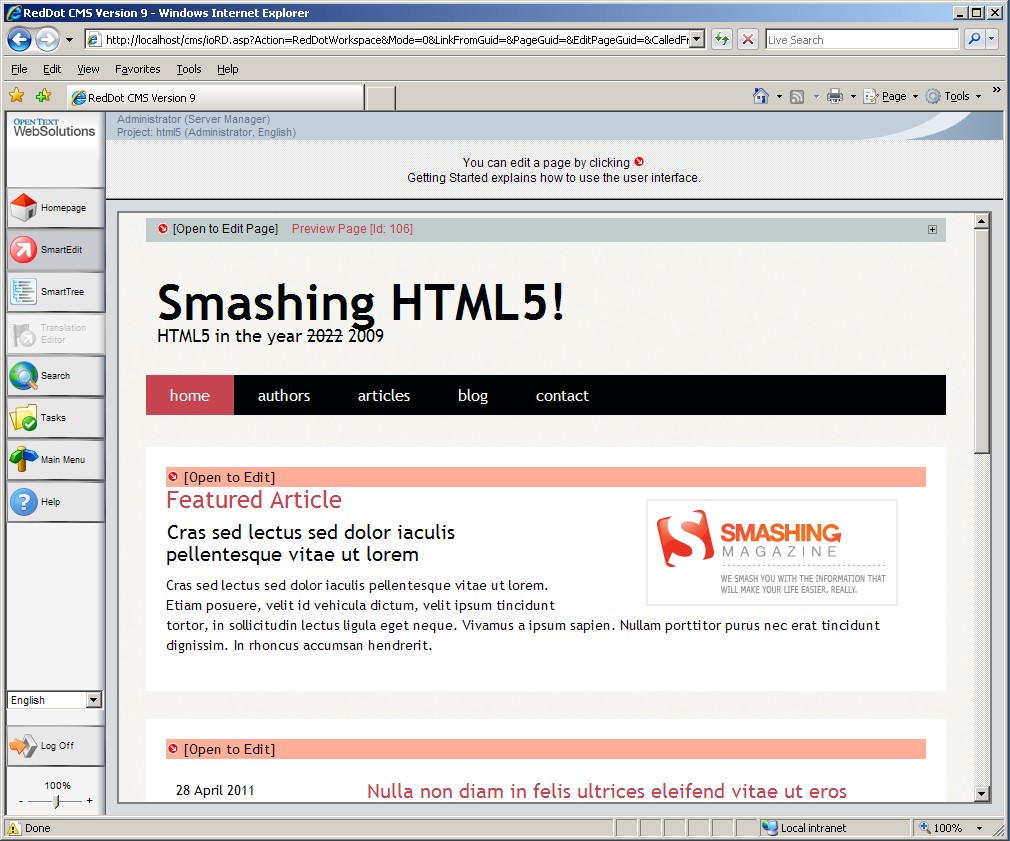
Just want to share a proof of concept project (proof that Management Server supports HTML5) I did based on Smashingmagzine's HTML5.

I wrote this project a few years back, when Management Server was still called CMS, to be more exact, CMS 9.

SmartEdit in CMS 9, IE8
SmartEdit in CMS 9, FireFox
SmartEdit in CMS 9, IE9
SmartEdit in CMS 10, IE9

It is recommended to use projects with HTML5 code after 10.1 SP2 HF18 (Build 10.1.2.391) because the Telerik/RadEditor text editor now also support HTML5 code and would not strip them out.


Download HTML5 Project Export (CMS 9)

Wednesday, March 14, 2012

Algorithm for Converting Old Navigation to Navigation Manager

This appears to be a frequently asked question for projects that are using the old list pull through container navigation method (the one with a connector page with a list and a container insider another container), so I am going to give out the algorithm I use.
  1. Lock down system from editors prior to running algorithm
  2. Create lst_navigation for all foundation content classes
  3. Make all foundations with lst_navigation a master page
  4. Review navigation connector page (the little page with a list that goes into a container) logic and rewrite it into navigation templates and navigation areas
  5. Foreach page instance of navigation connector, reconnect pages connected to the navigation connector list to lst_navigation of the parent page (the page with container), and delete navigation connector page instance
  6. Go into navigation manager, in the right pane, right click, click "disconnected pages" and then right click, "import pages"
  7. Depending on the size of the site, wait 30 to 45 minutes
  8. Go into navigation manager, in the right pane, right click, click "disconnected pages", find the root nood of your site, right click, "adopt page"
  9. Done
Cautionary Notes:
Old sites use the list container method so they can have separate publication package for each branch.  Also, each branch’s landing page is named index.htm.  These landing pages must be renamed or at least considered to avoid file overwrite.

Also, one must set expectation with the customer that the publishing file path for landing pages will be different since all landing pages will share the same lst_navigation and publication package.

Friday, February 24, 2012

Slow CMS Due to .NET Preexecution

If active scripting in project is configured to aspx, then a cache dll is created on the server's "Temporary ASP.NET files" folder for every SmartEdit page access, page preview and page publish.  Management Server slows down as more cache dlls are created within "Temporary ASP.NET files", eventually Management Server becomes unresponsive when accessed via SmartEdit, page preview or publishing.

The solution to delete the amounting cache dlls via an automated task, preferably nightly, schedule it so it does not clash with publishing or user access time period.

7.x to 9.x SP1 (using .NET 1.1)
Create "Clear_.NET_Temp_Cache.bat" in [MS Installation Directory]\ASP\Plugins
c:
cd "C:\Windows\Microsoft.NET\Framework\v1.1.4322\Temporary ASP.NET Files\cms"
del /S /Q *

9.x SP2 to 10.x (using .NET 3.5)
Create "Clear_.NET_Temp_Cache.bat" in [MS Installation Directory]\ASP\Plugins
c:
cd "C:\Windows\Microsoft.NET\Framework\v2.0.50727\Temporary ASP.NET Files\cms"
del /S /Q *

Create User-defined Job
Create user-defined job that runs nightly, schedule it so it does not conflict with existing publishing time.

Configure user-defined job to "External application", and provide path to aforementioned .bat file


For Management Server Clusters
N user-defined jobs for N Management Servers in the cluster